
How do I make additional bookings?
Step 1: Click ‘Profile’ on the top right and click on “Cancel and View orders”.
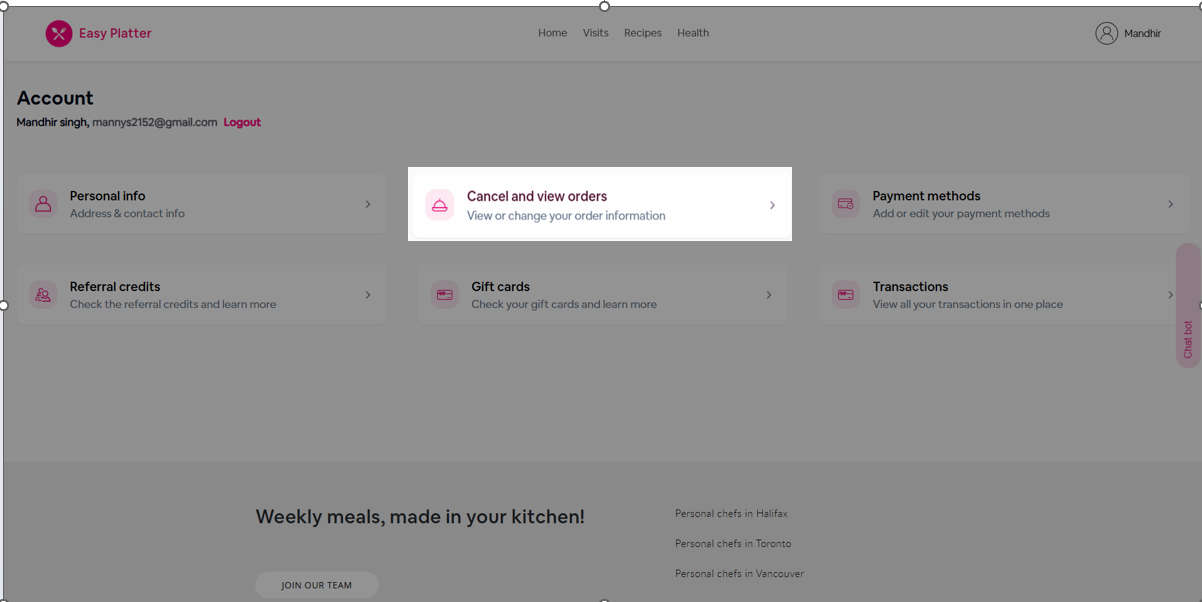
On the homepage, select the ‘Orders’ tab on the top of the screen.
Step 2: Select the “Chef on Call” order
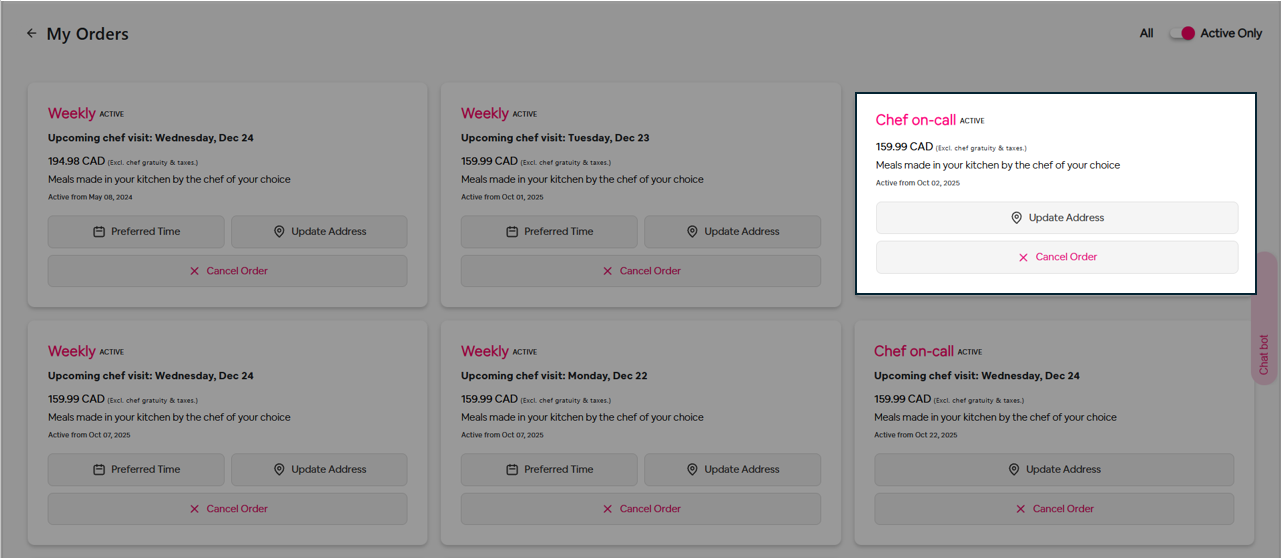
Under Orders, select the “Chef on Call” booking you’d like to add additional meal preps to.
Note: Additional bookings can only be added to Chef on Call visits. Weekly subscriptions already have scheduled visits assigned for each week, so add-ons cannot be added to those sessions.
Step 3: Click on ‘Add a visit’ in the visit page
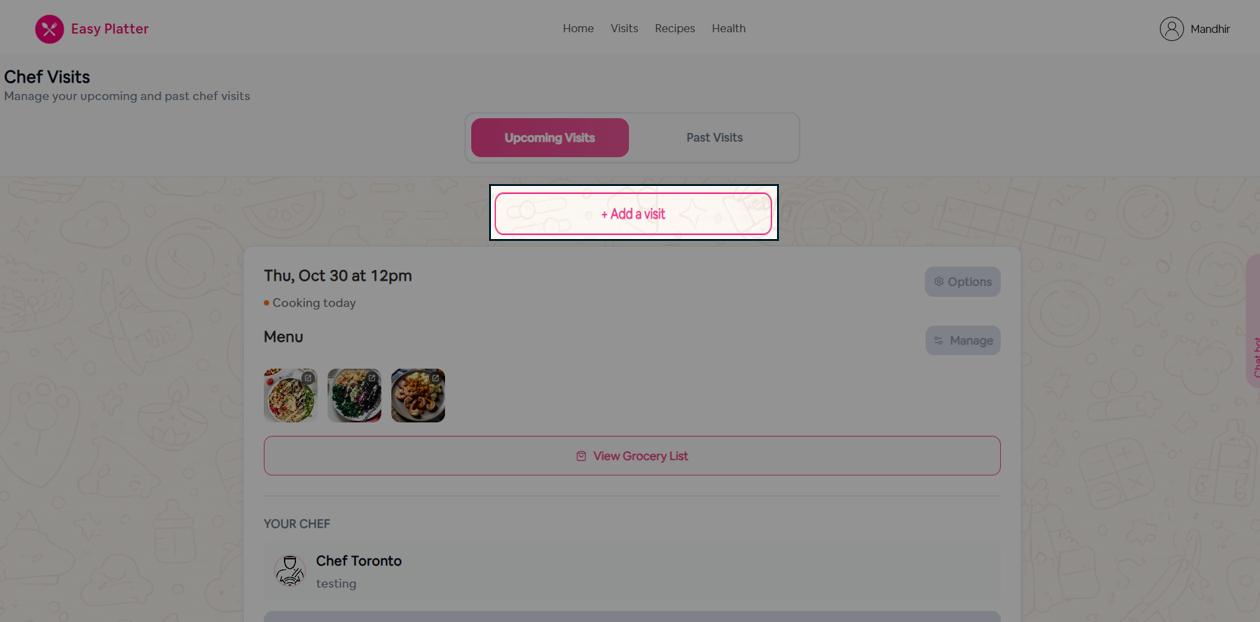
On the Visit page, you’ll see your upcoming and past visits listed under your selected booking. Simply click “Add a visit” to add an additional booking to your existing order.
Step 4: Select “Chef” and “Date”
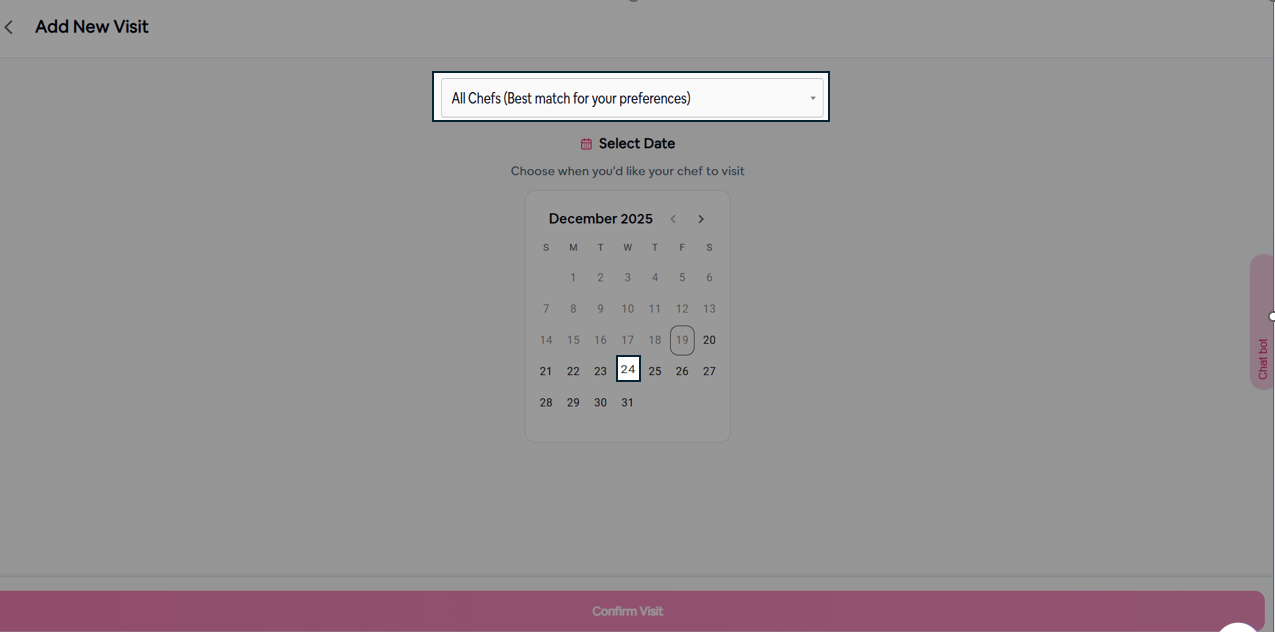
In the “Add a visit” page, you can select your preferred chef from the dropdown menu and choose the date you would like to book for your visit.
Step 5: Pick a slot.
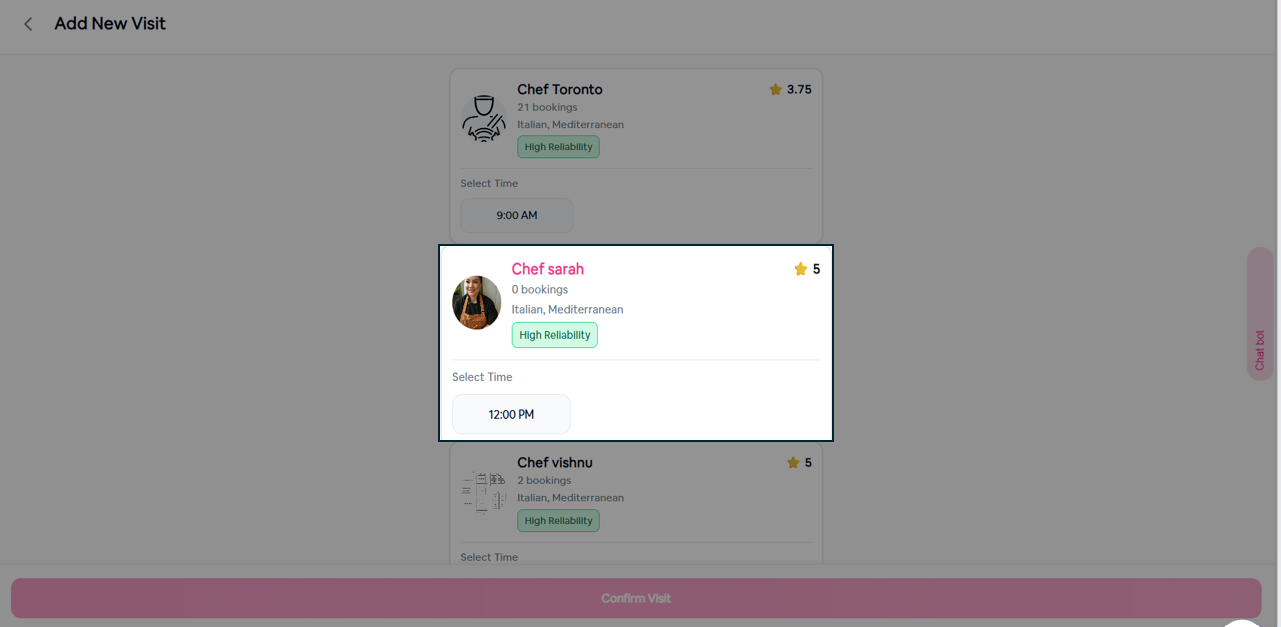
Choose the time slot suitable for you.
Step 6: Confirm visit
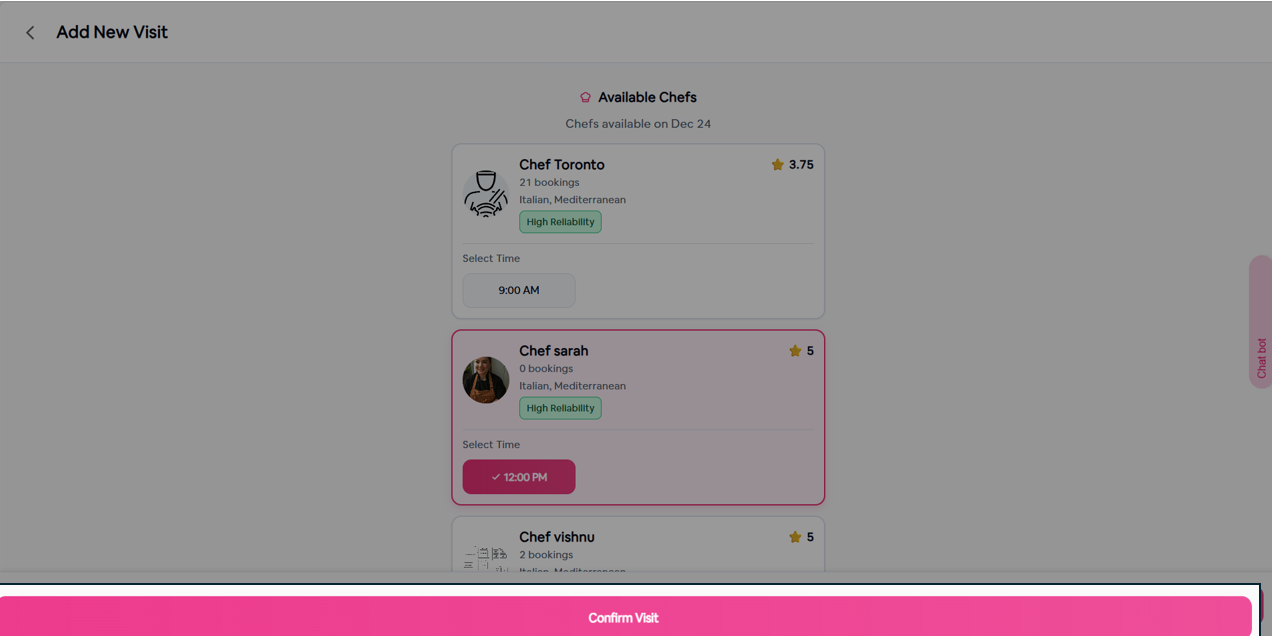
Select ‘Confirm visit’.